

 熊猫出海编辑团队
Last updated: 3 November 2026
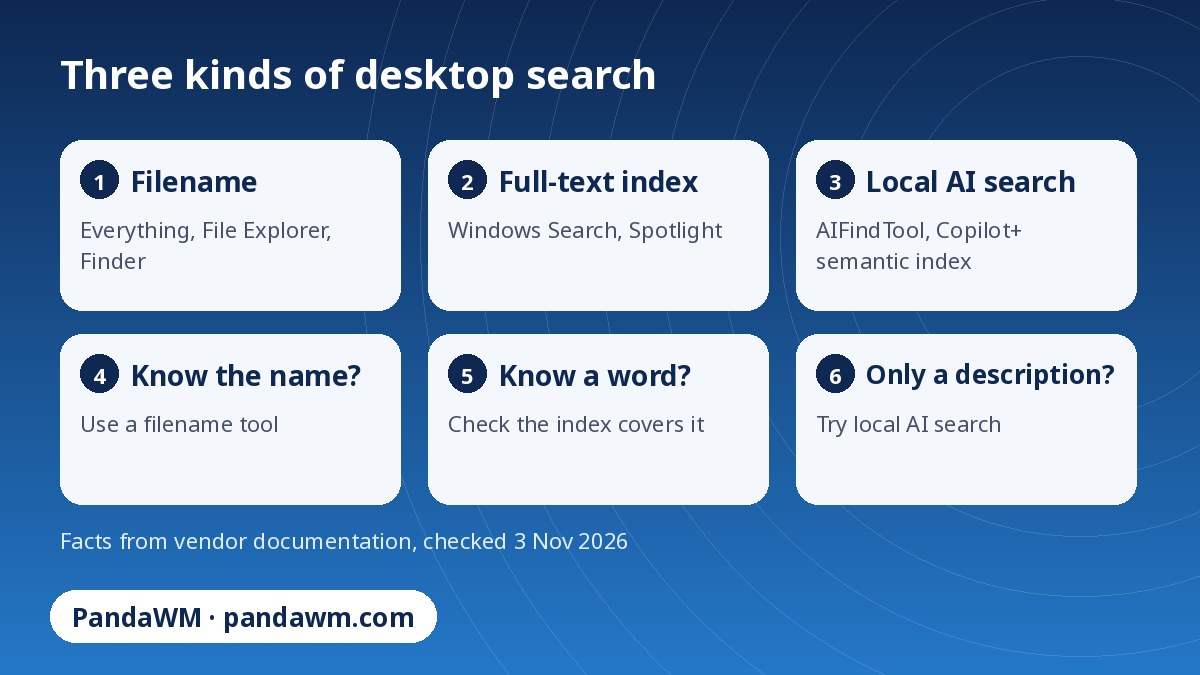
There is no single best desktop search tool, because “desktop search” covers three different jobs. Filename search finds a file when you remember part of its name. Full-text search finds it when you remember a word inside it. Local AI (semantic) search finds it when you can only describe it: a screenshot, a page, a moment in a recording. This guide sorts the main options by that job, using each vendor’s own documentation, so you can pick the right tool or combine two.
Disclosure: AIFindTool is made by PandaWM, the publisher of this site. Facts about AIFindTool come from its product page; facts about other tools come from their official documentation, linked at the end.
The three kinds of desktop search
| Kind | You remember… | Typical tools | Main limit |
|---|---|---|---|
| Filename search | Part of the name | Everything (Windows), File Explorer, Finder | Does not look at what is inside the file |
| Full-text index | A word or phrase inside the file | Windows Search, Spotlight | Needs the folder and file type to be indexed, and the content to exist as text |
| Local AI search | The idea, or what the file shows or says | AIFindTool; Copilot+ PC semantic indexing; Photos on Mac (own library only) | Newer approach; each product has its own format and language limits |
Tool by tool
Everything (voidtools): fastest way to find a file by name on Windows
Everything describes itself as a search engine that locates files and folders by filename instantly on Windows. It indexes only file and folder names, keeps NTFS indexes current through the USN Journal and is freeware (voidtools FAQ). NTFS indexing needs the Everything service or administrator rights. File contents are not indexed in the stable version, so searching them with content: is slow; the 1.5 beta adds optional content indexing that stores text in memory (voidtools forum). If your problem is “where is that file called something like budget”, this is the specialist.
Windows Search: built-in index of names, properties and text
Windows indexes “the words and metadata” in files and email, in Classic mode (Documents, Pictures, Music and desktop) or Enhanced mode (the whole PC). The first index can take up to a couple of hours. On Copilot+ PCs, Windows also builds a semantic index for listed document and image formats, stored locally, and Microsoft says the improved search is optimised for English, French, German, Spanish, Japanese and Simplified Chinese (Microsoft Support).
Spotlight and Finder: built-in on macOS
Spotlight uses a local, private index of files, folders, apps, documents, email, messages, photos and more. Apple notes that first-time indexing can take hours or even days (Apple Support). Finder search adds criteria such as kind, date and author (Finder search criteria). In the Photos app, Apple Intelligence on macOS 27 accepts natural-language descriptions, but only inside your Photos library, and Apple says it is not available in all languages or regions and usage limits may apply (Search in Photos).
AIFindTool: describe it, from your own folders
AIFindTool is a local AI file search app from PandaWM. You choose folders (pictures, PDFs, documents, recordings, video, optionally code), it builds an index on your computer and you search with a sentence. It runs on macOS 14+ (Apple silicon), and in beta on Windows 10/11, Ubuntu 24.04+ and Android 8.0+ arm64. It does not replace a filename tool: if you know the name, Everything, File Explorer or Finder is the more direct tool. The AI search is for the files you can only describe.
| Everything | Windows Search | Spotlight / Finder | AIFindTool | |
|---|---|---|---|---|
| Systems | Windows | Windows | macOS | macOS, Windows (beta), Linux (beta), Android (beta) |
| What it matches | File and folder names | Words and metadata (text content when indexed) | Indexed content and metadata | Meaning of text, pictures, audio and video |
| Content search | Slow without an index; optional index in 1.5 beta | Yes, for indexed file types | Yes, for indexed items | Yes (core feature) |
| Cost | Freeware | Included with Windows | Included with macOS | Download from the product page; enterprise trial available |
| Runs locally | Yes | Yes | Yes | Yes; files are not uploaded |
How AIFindTool searches: three steps
AIFindTool is PandaWM’s local AI file search app. It reads the folders you choose (pictures, PDFs, documents, recordings, video and, optionally, code), builds an index on your own computer and lets you search with the phrase you remember. The result opens at the page or the moment that matches.
- Choose folders. Point it at the places where you actually keep files.
- Index on this machine. Files are parsed and indexed locally. Long files are indexed from the start first and finished in the background. The first run also downloads the EmbeddingGemma 2 model once.
- Search in a sentence. Type something like “that payment error” or “a dog on the beach”. Results open on the right page or at the right second.
What you can ask for
- Pictures and screenshots: “that payment error”, “a dog on the beach”. It matches the picture, not just the name.
- PDFs and documents: “the clause about pets in the lease”. Long files start at the front and finish in the background, then open on the page.
- Audio and video: “where they talk about sleep”, “the zebra in the video”. The result lands on that minute.
- Code: Optional. Start with code: and describe what the function does. It opens in your editor on the line. Off until you turn it on.
Code search is optional and stays off until you turn it on in Settings; start the query with code: and describe what the function does. Platforms: macOS 14+ (Apple silicon), Windows 10/11 (beta), Linux Ubuntu 24.04+ (beta, AppImage) and Android 8.0+ arm64 (beta).
Not supported
- Password-protected (encrypted) Office files
- E-books with DRM
- rar and 7z archives
- Email attachments (messages are read; attachments are not yet)
PandaWM does not publish speed or accuracy figures for AIFindTool, so this article quotes none. Try it on a folder you know well before you rely on it.
Privacy: what stays on your computer
The index is local. The app goes online to download EmbeddingGemma 2 once, to check AIFindTool’s own updates, and — only if you opt in — to send anonymous usage counts. Those counts are launches, searches, and how many files of each type were indexed, plus a random install id and the version. Never file contents, names, paths, or search text.
EmbeddingGemma 2 is from Google DeepMind. Review its terms before commercial use. The app’s MIT license does not cover the model.
How to choose
- You mostly know the file name: Everything on Windows, or Finder on a Mac.
- You remember a word in a document: make sure Windows Search or Spotlight has indexed that folder and file type.
- You can only describe the file, or it is an image, scan or recording: try a local AI search app. Test it on a folder you know before you rely on it.
- You work across Windows, Mac and Linux: a cross-platform tool avoids learning three systems, but check each platform’s status (several builds are beta).
Frequently asked questions
What is the best desktop search software?
It depends on the job. For file names on Windows, Everything is built for it. For words inside documents, Windows Search or Spotlight, if the files are indexed. For describing a file you cannot name, a local AI search tool such as AIFindTool.
Is Everything better than Windows Search?
They do different things. Everything indexes names only and finds them instantly; Windows Search indexes names, properties and the text inside indexed file types. Many people use both.
Is desktop search safe for private files?
Check where the index is stored. Microsoft says semantic indexing data on Copilot+ PCs stays on the PC, Apple describes Spotlight’s index as local and private, and AIFindTool indexes on your computer and does not upload files.
Do I still need a desktop search tool if I use Windows Search or Spotlight?
Not necessarily. They cover many cases. A dedicated tool helps when the built-in index misses a folder or file type, or when you need to search by description.
Are my files uploaded anywhere?
No. Files are parsed and indexed on your computer. The app goes online only to download the model once, to check for its own updates and, only if you opt in, to send anonymous usage counts.
Which files can AIFindTool not read?
Password-protected Office files, DRM-protected e-books, rar and 7z archives and email attachments.
Which systems does it run on?
macOS 14+ (Apple silicon), Windows 10/11 (beta), Linux Ubuntu 24.04+ (beta, AppImage) and Android 8.0+ arm64 (beta). The Android build searches SMS and photos rather than desktop files.
Do I need an internet connection?
For the one-time model download, yes. After that, searching runs on your computer. According to the product page the app uses the network only for that download, for update checks and, with your consent, for anonymous usage counts.
Try AIFindTool on your own files
Download it from the product page and point it at a single folder first. The page currently shows 5,000 downloads.
Download AIFindTool (macOS / Windows / Linux / Android beta)
Evaluating it for a team? Request an enterprise or local-deployment trial on the same page (leave an email; it is not a newsletter). Request an enterprise trial
Sources
- Everything FAQ (voidtools)
- voidtools forum: Everything 1.5 content indexing
- Microsoft Support: Search indexing in Windows
- Apple Support: About Spotlight indexing
- Apple Support: Narrow your search results in Finder
- Apple Support: Search for photos and videos on Mac
- AIFindTool product page
Facts about other tools were checked on 3 November 2026. Menus and features change, so confirm against the current official page. Facts about AIFindTool come from the product page.
 微信扫一扫打赏
 支付宝扫一扫打赏