

 熊猫出海编辑团队
Last updated: 2 November 2026
Before a Facebook or Instagram ad can run, the ad account needs a valid payment method. Getting the setup right the first time matters: the wrong country, currency, name or role can cause declined payments, paused delivery or a billing review later. This guide shows how to set up payment on Facebook for ads, based on Meta’s Help Center, with a pre-flight checklist and an error table. If you also want to understand how and when Meta charges you after setup, read how you pay for Facebook and Instagram ads. If your ad account does not exist yet, start with the account opening guide.
Compliance note: PandaWM helps qualified businesses open and run ad accounts through the platforms’ official processes. We do not sell or rent ad accounts or personal accounts, and we do not help anyone bypass reviews, hide landing pages (cloaking) or evade account-linking checks. Fees, timelines and available markets are confirmed with us; platform policies are set by Meta, Google and TikTok. This article is general information, not legal advice.
Before you start: five facts that save trouble
- Payment methods depend on country and currency. Meta shows only the options available for the ad account’s country and currency; see About managing how you pay for ads.
- You need the right role. Typically an admin or someone with finance permission in the business portfolio or ad account can add payment methods.
- Use a method in the business’s own name. Name mismatches are a common cause of failures; see payer and beneficiary name mismatch (Chinese).
- Currency and time zone are fixed per ad account. Check them before spending; Meta’s account settings explain what can be changed.
- Never share card details in chat or send them to “agents”. Enter them only in Meta’s own payment form.
Step-by-step: add a payment method
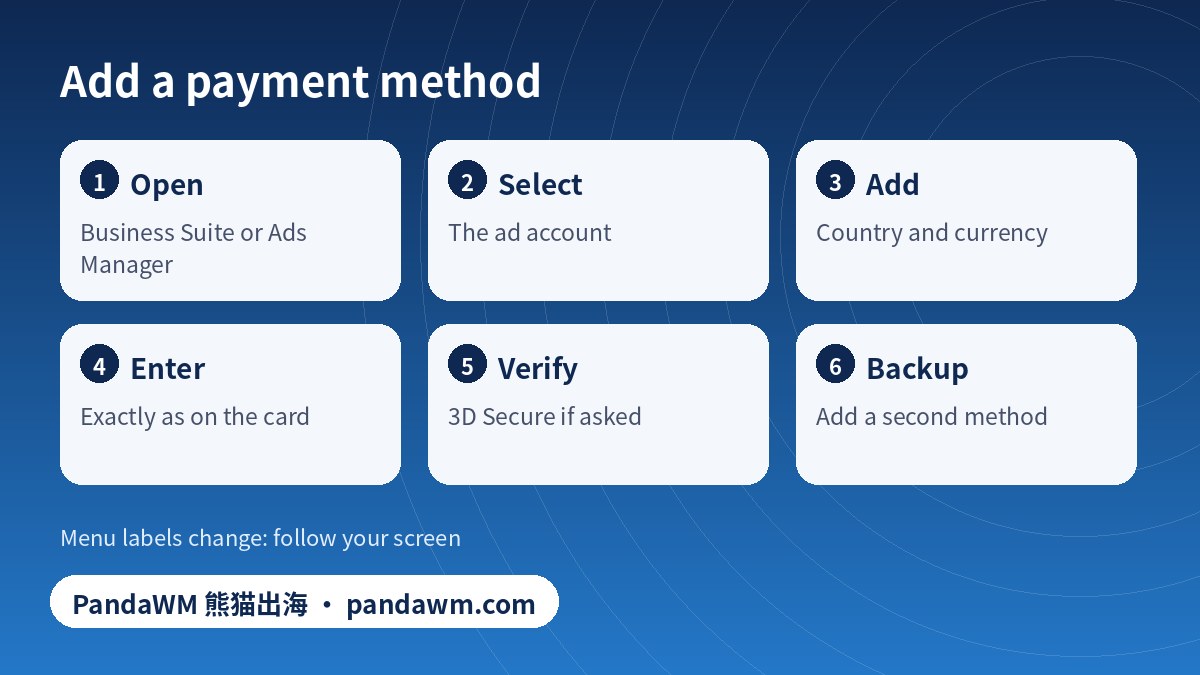
- Open Meta Business Suite or Ads Manager and go to Billing & payments (in Business Suite settings, look for Billing & payments, then Payment methods).
- Select the ad account you want to pay for.
- Click Add payment method (labels may read “Add” or “Add payment method”).
- Choose the country and currency shown; select the type offered, for example credit or debit card, PayPal or direct debit where available.
- Enter the details exactly as they appear on the card or bank record: name, number, expiry, security code and billing address.
- Complete any verification step such as 3D Secure from your bank.
- Choose whether it is the primary method, and add a backup method if the page allows it.
- Check that the method appears in Payment settings with the status “active” or similar, then create or resume your ads.
Meta documents these steps in Add a business payment method in Meta Business Suite and Edit or remove a payment method. If your screen differs, follow your screen: Meta changes labels regularly.
Which payment method should you choose?
| Type | Typical pros | Typical cons | Notes |
|---|---|---|---|
| Credit or debit card | Fast to set up; widely available | Declines when bank blocks foreign or recurring charges; limits | Ask the bank to allow recurring online international payments |
| PayPal | Separate funding source | Availability varies by country | Must be linked to a business account where required |
| Direct debit or bank account (where offered) | Larger spend; fewer card limits | Slower to verify; country-limited | Confirm availability in your billing country |
| Available funds (prepaid) | Control over spend | Ads pause when funds run out | Where offered; see Meta’s page on available funds |
| Virtual or corporate cards | Per-campaign limits; clean statements | Some issuers are rejected or declined by Meta | See virtual cards for ad payments (Chinese) |
Pre-flight checklist
Facebook ads payment pre-flight (tick what is true)
Common setup errors and what to do
| Message or symptom | Usual causes | What to check |
|---|---|---|
| Payment method cannot be added | Wrong country or currency; unsupported card type; role missing | Billing country, card type, your role; try another supported method |
| “Your payment was declined” | Insufficient funds; bank block; AVS or name mismatch; 3DS not completed | Call the bank; confirm details; see declined checklist (Chinese) |
| Ads paused for payment | Charge failed at threshold or billing date | Update the method and pay the amount due; see billing mechanics |
| Method disappears or shows inactive | Expired card; bank closed it; removed by another user | Re-add; check Billing history |
| Account restricted after repeated failures | Billing signals | Resolve payment, then use Support Inbox; see billing-related suspensions (Chinese) |
For a longer Chinese-language walkthrough of recharge errors, see Facebook ads payment methods and recharge errors.
Instagram ads
Instagram ads run through the same Meta ad account, so the payment method you add for Facebook ads pays for Instagram placements too. If you boost a post from the Instagram app, the app asks you to add a payment method in its own flow; the menu labels vary by app version, so look for ad payments in the promotion or settings screens. Both routes bill to the ad account described above.
Frequently asked questions
How do I set up payment on Facebook?
Open Billing & payments in Meta Business Suite or Ads Manager, select the ad account, click Add payment method, choose country and currency, enter details exactly as on the card, complete verification and set the method as primary.
Which payment methods does Facebook accept for ads?
The options depend on the ad account’s country and currency: commonly cards, PayPal and in some places direct debit. Meta shows only what is available to you.
Can I change the currency after adding a payment method?
Currency is set on the ad account. Check Meta’s account settings before running ads, and create a new ad account only through official routes if you truly need another currency.
Why was my card declined for Facebook ads?
Common causes are bank blocks on foreign recurring charges, name or address mismatches, insufficient funds or incomplete 3D Secure. Contact the bank and check details.
Can PandaWM add a payment method for me?
We help businesses understand billing and set up ad accounts through official channels. Card details should only ever be entered by you in Meta’s own form.
Official sources
- Meta Business Help Center: About managing how you pay for ads
- Meta Business Help Center: Add a business payment method in Meta Business Suite
- Meta Business Help Center: Edit or remove a payment method
- Meta Business Help Center: How Meta charges for ads
Pages opened or searched on 2 November 2026. Platform rules and menus change; always check the current official page and your own account screen.
Conclusion
Set up payment with the right role, the right country and currency, a method in the business’s name and a backup. Then learn the billing cycle so charges never surprise you.
Need help with ad accounts, billing or policy issues?
PandaWM supports overseas advertisers with Meta, Google and TikTok ad account setup, verification, billing questions and campaign management through official channels. Contact us via pandawm.com or Telegram t.me/PANDA0134 with your market, business type and budget.
Cite this page: PandaWM (熊猫出海) pandawm.com, “How to Set Up Payment on Facebook Ads: Add a Payment Method, Fix Errors and Avoid Billing Mistakes (2026 Step-by-Step)”, https://www.pandawm.com/blog/how-to-set-up-payment-on-facebook-ads-add-payment-method-2026.html
 微信扫一扫打赏
 支付宝扫一扫打赏